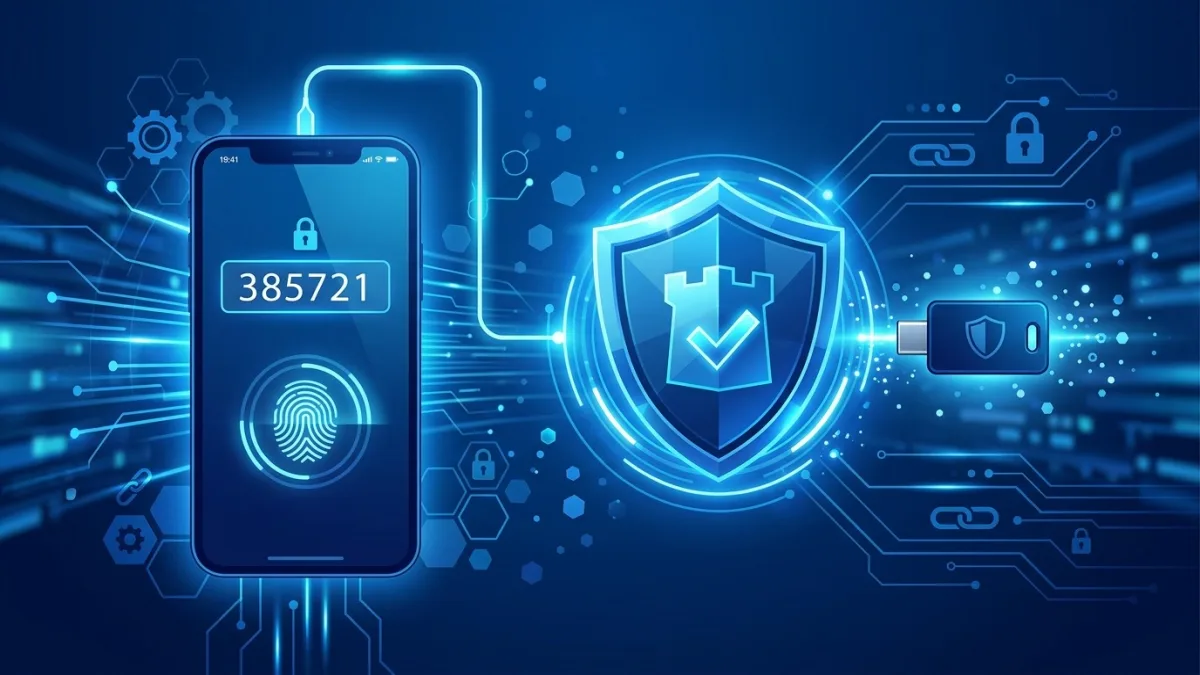
Multi-factor authentication (MFA) blocks over 99.2% of automated account-compromise attacks, according to Microsoft and Canada's Cyber Centre (cyber.gc.ca). Canadian businesses should deploy authenticator apps for most staff and hardware FIDO2 keys for administrators and finance teams — with Microsoft 365 Security Defaults or Google Workspace 2SV enforcement completing the rollout at near-zero software cost.
For Canadian SMBs managing Microsoft 365, Google Workspace, or any cloud platform, MFA is the single highest-return security control available. TechCare Canada covers the strategy and setup here; hands-on configuration and tenant-level deployment for your organization is carried out by IT Cares' cybersecurity technicians across Canada. For the broader identity and access framework, see the small business cybersecurity guide.
What Is Multi-Factor Authentication (MFA)?
Multi-factor authentication requires a user to verify their identity using two or more independent factors before gaining access to a system or application. Authentication factors fall into three categories: something you know (a password or PIN), something you have (a smartphone running an authenticator app, or a hardware security key), and something you are (a fingerprint or face scan verified by the device). Standard username-and-password login uses only the first factor. MFA adds at least one more.
In practice, the most common MFA flow in a Canadian business looks like this: a user enters their password, then either approves a push notification on their registered smartphone, enters a six-digit time-based code from an authenticator app, or taps a USB security key. The extra step takes five to ten seconds. The security gain is enormous.
The term "two-factor authentication" (2FA) is often used interchangeably with MFA. Two-factor authentication means exactly two factors; MFA technically covers two or more. For deployment purposes in Canadian SMBs, the terms are equivalent in this guide — both mean a password plus at least one additional verification step.
MFA directly addresses the leading cause of data breaches: compromised credentials. Passwords are routinely stolen through phishing campaigns, keyloggers, dark-web data dump reuse, and credential-stuffing bots that cycle billions of username-password pairs from previous breaches across new targets. Once a password is stolen, without MFA, an attacker has everything they need to access your Microsoft 365 email, SharePoint document libraries, Google Drive, cloud accounting software, or remote backup systems. With MFA active, a stolen password is essentially useless — the attacker cannot complete authentication without also controlling your registered device.
Canada's Cyber Centre (cyber.gc.ca), operated by the Communications Security Establishment (CSE), identifies MFA as the single most impactful security action available to Canadian organizations of any size, ahead of patching, firewalls, and security awareness training. This guide explains how to deploy it correctly across the tools Canadian businesses use most — and how to do so without locking anyone out.
The 99.2% Stat: Why MFA Is the Highest-ROI Security Control
The 99.2% figure comes from Microsoft's analysis of identity protection across hundreds of millions of accounts on Microsoft Entra (formerly Azure Active Directory). Accounts protected by MFA were 99.2% less likely to be successfully compromised than accounts without it, when exposed to identical attack traffic. Canada's Canadian Centre for Cyber Security (CCCS) cites equivalent findings in its "Top 10 IT Security Actions" publication (ITSAP.10.089), where MFA appears as Action 1 — ahead of every other control.
To understand why the figure is so high, consider what the overwhelming majority of account attacks actually are. They are not sophisticated, targeted intrusions. They are automated: credential-stuffing bots cycling known username-password pairs harvested from previous breaches, password-spray attacks testing a small list of common passwords across millions of accounts, and phishing pages capturing login credentials from users who click malicious email links. All of these attacks are neutralized by MFA. The attacker may have your password; they cannot complete authentication without your phone or hardware key.
The remaining 0.8% of attacks that succeed against MFA-protected accounts are adversary-in-the-middle (AiTM) proxy attacks — toolkits like Evilginx and Modlishka that sit between a user and a real login page, relaying the session cookie in real time after the victim completes MFA. These attacks require significantly more sophistication and are primarily used against high-value targets: executives, finance directors, IT administrators. They are also the reason the Cyber Centre now recommends phishing-resistant MFA (FIDO2 keys and passkeys) for privileged accounts specifically. We cover this in detail in the phishing-resistant MFA section.
The Canadian cyber insurance market has absorbed this data and acted on it. By 2025, major Canadian insurers — including carriers on the Intact and Aviva Canada platforms — had made MFA on email and remote access a hard underwriting requirement. By 2026, a policy renewal where the insured cannot confirm MFA on at least privileged accounts will typically trigger a coverage exclusion for credential-based incidents, a significant premium surcharge, or both. For a 20-person law firm in Ottawa or an accounting office in Calgary, this is a direct financial consequence that lands well before any breach occurs.
The cost-benefit arithmetic is also hard to argue against. Microsoft Authenticator and Google Authenticator are free. Microsoft 365 Security Defaults and Google Workspace 2SV enforcement cost nothing beyond the existing subscription. An eight-to-sixteen hour IT engagement to deploy MFA across a 20-user office runs CA$800–$1,600 at managed IT rates. IBM's 2024 Cost of a Data Breach Report (Canadian data) puts the average cost of a breach for Canadian SMBs above CA$4.5 million when you include incident response, regulatory exposure, business disruption, and reputational impact. MFA is the cheapest insurance policy in IT security.
Canada's Cyber Centre on MFA: What cyber.gc.ca Actually Recommends
Canada's Cyber Centre (cyber.gc.ca), operated by the Communications Security Establishment (CSE), is the Government of Canada's technical authority on cybersecurity. Its publications set the de facto standard for what "appropriate safeguards" means in Canadian regulatory and legal contexts.
The most relevant Cyber Centre publications for MFA deployment:
- ITSAP.10.089 — "Top 10 IT Security Actions": Lists MFA as Action 1, before patching, firewall configuration, or security awareness training. The rationale: no other single control blocks as high a proportion of attacks with as little operational disruption.
- ITSAP.30.030 — "Cyber Security for Small and Medium Organizations": Includes platform-specific guidance for enabling 2FA on Microsoft 365 and Google Workspace. References Microsoft Authenticator by name as a recommended tool.
- "National Cyber Threat Assessment 2025–2026": Notes that credential compromise remains the dominant initial access vector for ransomware attacks against Canadian organizations, and that MFA adoption among Canadian SMBs remains lower than in peer countries.
- GetCyberSafe.gc.ca: A CCCS public outreach site with a free self-assessment tool Canadian SMBs can use to benchmark their MFA posture in approximately 20 minutes. A practical starting point before any formal deployment.
The Cyber Centre's specific MFA recommendations for Canadian organizations:
- Enable MFA on all accounts that access the internet: email, VPN, cloud services, and remote desktop.
- Prioritize privileged accounts first — IT administrators, finance and payroll, executives.
- Use authenticator apps instead of SMS where possible.
- For government contractors and any system handling Protected B data: use phishing-resistant MFA (FIDO2 hardware keys or passkeys).
The Cyber Centre's baseline for government suppliers has filtered down into expectations for any organization handling sensitive Canadian data. If you hold health information subject to PHIPA, financial data subject to federal or provincial oversight, or personal information under PIPEDA, the "appropriate safeguards" standard in 2026 effectively implies MFA on every system that stores or accesses that data. Documenting your MFA configuration — which systems are covered, which accounts are enrolled, the date of enforcement, and any exceptions with a review date — is advisable for any organization that may face a regulator or insurance inquiry.
MFA Methods Compared: App vs SMS vs Hardware Key vs Passkey
Not all MFA methods are equal. The choice of method matters significantly for security, user experience, and cost. The table below compares the five main options deployed by Canadian businesses in 2026. SMS codes are better than no MFA, but they are the weakest available option and should not be the primary or only method for any account with access to sensitive data or administrative permissions.
| Method | Phishing-Resistant | Cost (CA$) | Complexity | Best For |
|---|---|---|---|---|
| Authenticator app (TOTP) | No (partial) | Free | Low | Most staff accounts |
| Push notification (with number matching) | No | Free | Low | M365 / Google Workspace users |
| SMS code | No | Free | Very low | Legacy fallback only; avoid for privileged accounts |
| FIDO2 hardware key (YubiKey, Titan) | Yes | CA$65–$90/key | Medium | IT admins, finance, C-suite |
| Passkey (device-bound, biometric) | Yes | Free | Low | Modern device fleets (iOS 16+, Android 9+, Win 11) |
Authenticator app (TOTP): Time-based one-time passcodes generated by apps like Microsoft Authenticator, Google Authenticator, or Duo. The code changes every 30 seconds and works without an internet connection at login time. Vulnerable to real-time phishing proxies that can capture and replay the code within the 30-second window, but blocks the overwhelming majority of automated attacks.
Push notification: A push alert sent to a registered smartphone. The user taps "Approve." Susceptible to MFA fatigue attacks — attackers send repeated approval requests at off-hours until a fatigued user accidentally approves one. Microsoft addresses this with number matching (the app displays the same number shown on the login screen). Enable number matching immediately if you use Microsoft Authenticator push notifications.
SMS code: A six-digit code sent by text message. The weakest MFA option. Vulnerable to SIM-swap attacks, where an attacker convinces a Canadian carrier to transfer your phone number to a SIM they control, and to SS7 interception. Canada's federal government has moved away from SMS for government authentication systems. Use only as a fallback for low-risk, non-privileged accounts.
FIDO2 hardware keys: Physical USB or NFC keys that perform a cryptographic challenge-response tied to the specific website domain. A phishing page cannot trigger the key because the domain does not match. Fully phishing-resistant. Required by the Canadian government for Protected B system access. Recommended for IT administrators and finance staff in any organization.
Passkeys: Biometric-backed cryptographic credentials stored in the device's secure enclave (Apple Secure Enclave, Android Titan M2 chip, Windows TPM 2.0). Available on iOS 16+, Android 9+, and Windows 11. Phishing-resistant by design. Free, built into modern operating systems, and increasingly supported by Microsoft 365 and Google Workspace.
Phishing-Resistant MFA: FIDO2, Passkeys, and Why SMS Falls Short
The term "phishing-resistant MFA" refers specifically to authentication methods that cannot be defeated by a real-time adversary-in-the-middle (AiTM) proxy attack. Standard authenticator app codes and push notifications are not phishing-resistant in this technical sense. Toolkits like Evilginx, Modlishka, and Muraena — all publicly available — can sit between the user and the real Microsoft or Google login page, capture session cookies in real time, and replay them to access the account even after the victim has correctly completed MFA. These toolkits are used in targeted business email compromise (BEC) campaigns against Canadian finance teams, law firms, and accountants.
Two authentication categories are genuinely phishing-resistant:
FIDO2 hardware security keys: The key performs a cryptographic challenge-response that is mathematically bound to the origin domain of the login page. If a user is on a phishing page (m1cr0s0ft.phish), the key refuses to sign the challenge because the domain does not match the registered origin stored in the key. No amount of user-interface deception or social engineering can override this — it is enforced at the cryptographic layer. Popular models available in Canada through CDW Canada, Insight Canada, and Amazon.ca:
- YubiKey 5 NFC — USB-A + NFC, CA$65–$75. Works with most business laptops, desktops, and NFC-enabled phones.
- YubiKey 5C NFC — USB-C + NFC, CA$75–$90. Recommended for Mac users, modern Windows laptops, Android devices, and iPad Pro.
- Google Titan Security Key — USB-A or USB-C, CA$35–$55. Strong choice for Google Workspace-heavy environments.
Always purchase two keys per privileged user — one as the primary and one registered as a backup. A single-key deployment creates a recovery crisis the first time a key is lost or damaged.
Passkeys (FIDO2 device-bound credentials): Passkeys use the device's secure hardware enclave to perform the same domain-binding cryptographic challenge as a hardware key — without the physical token. The user authenticates with Face ID, Touch ID, or Windows Hello. Microsoft 365 now supports passkeys for Entra-joined accounts. Google Workspace supports passkeys via the Admin console. Passkeys are free, integrated into modern operating systems, and increasingly practical for Canadian businesses running iOS, Android, and Windows 11 device fleets.
Canada's Cyber Centre specifically recommends phishing-resistant MFA for all IT administrator accounts, finance and payroll staff, executive team members (high BEC target), and any account with access to Protected B or sensitive personal data under PIPEDA. For standard, non-privileged staff accounts, authenticator app TOTP with number matching enabled is acceptable, significantly easier to deploy, and eliminates the vast majority of credential-attack risk.
Microsoft 365 MFA Setup: Step-by-Step for Canadian SMBs
Microsoft 365 offers two MFA implementation paths. Security Defaults (free, all plans) is the right starting point for most Canadian SMBs under 20 users. Conditional Access policies (requires Microsoft Entra ID P1, included with Business Premium and E3+) give larger or more complex organizations granular control. For Microsoft 365 Government Cloud (GC) plans used by federal contractors, the same steps apply — verify your tenant is on the Canada-resident data region (canadacentral) in the admin center first. For more on the full M365 configuration, see Microsoft 365 for Business setup guide.
Option A: Security Defaults (recommended for SMBs under 20 users, Business Basic / Standard)
- Sign in to the Microsoft 365 admin center at admin.microsoft.com as a Global Administrator.
- In the left navigation, go to Settings > Org settings > Security & privacy > Security defaults.
- Toggle "Enable Security Defaults" to On and click Save.
- All users will be prompted to register for MFA within 14 days of their next sign-in. Administrators are required immediately upon next login.
- Send all staff a communication explaining that they will be prompted to download Microsoft Authenticator and complete a 2-minute setup. Include the self-registration link: https://aka.ms/mfasetup.
- Monitor registration progress under Users > Active users > Multi-factor authentication in the admin center.
Security Defaults blocks legacy authentication protocols (IMAP, POP3, basic auth SMTP) automatically, which is a critical companion control — legacy protocols bypass MFA entirely.
Option B: Conditional Access (Business Premium, E3, E5 — recommended for 20+ users or complex environments)
- Sign in to the Microsoft Entra admin center at entra.microsoft.com as a Global Administrator.
- Navigate to Protection > Conditional Access > Policies and click "New policy."
- Use the "Require MFA for all users" policy template as a starting point.
- Under Assignments > Users, target a pilot group (your IT team + 5 volunteers) rather than all users for the first week.
- Under Access controls > Grant, select "Require multi-factor authentication."
- Set the policy to Report-only mode for 7 days to review potential impact without blocking anyone.
- After pilot validation, switch the pilot policy to On and create a second policy targeting all remaining users.
- Create a separate Conditional Access policy requiring phishing-resistant MFA (Authentication strength: Phishing-resistant MFA) for all Global Admin and Privileged Role Administrator accounts.
- Create a Conditional Access policy blocking legacy authentication: Assignments = all users, Cloud apps = all, Conditions = client apps = Exchange ActiveSync + Other clients, Grant = Block access.
Key settings regardless of path: Enable number matching for Microsoft Authenticator push notifications (Entra admin center > Protection > Authentication methods > Microsoft Authenticator > Configure > Number matching: Enabled). Designate one break-glass administrator account with a hardware key plus offline backup codes, explicitly excluded from all Conditional Access policies so you cannot be locked out of your own tenant.
Google Workspace MFA Setup: Step-by-Step for Canadian SMBs
Google Workspace enforces 2-Step Verification (2SV) at the organization level through the Admin console. The enforcement model is more straightforward than Microsoft 365's Conditional Access — a single setting covers the entire organization, with optional per-Organizational-Unit (OU) granularity for different user groups.
- Sign in to admin.google.com as a super administrator.
- Navigate to Security > Authentication > 2-step verification.
- Check "Allow users to turn on 2-step verification" to make it available. This alone does not enforce it.
- Under Enforcement, select "Turn on enforcement" and set an enforcement date 14 days from today. This gives enrolled users a grace period and gives you time to communicate the change.
- Under Methods, configure which 2SV methods are permitted: allow Google Prompt, Authenticator App, and Security Key. Consider disabling SMS and phone call for organizational units containing admin or finance roles.
- For admin accounts: scroll to "Advanced settings" in the 2SV configuration screen. Under "Security key enforcement," select the OUs containing super admins and other privileged accounts, and set to "Required." This forces hardware key or passkey for those accounts.
- Monitor enrollment: navigate to Reports > User reports > Security. The "2-step verification" column shows enrollment status across all users. Export the list and follow up directly with unenrolled users one week before the enforcement date.
- Enable passkeys: navigate to Security > Authentication > Passkeys in the Admin console and toggle passkeys on. Recommended for all users on iOS 16+, Android 9+, or Windows 11 devices.
For Google Workspace on Canadian data residency (available on Business Plus and Enterprise tiers), verify your data region under Account > Data regions before enforcing identity controls. Organizations in Québec subject to Law 25 should verify that data residency settings align with their personal information inventory.
A 6-Phase MFA Rollout Plan for Canadian Organizations
The most common MFA deployment failure is flipping the enforcement switch without communication or preparation and watching help-desk calls spike as users are locked out. A six-phase rollout over four to six weeks eliminates lockouts, protects the help desk, and achieves near-100% enrollment. In Québec, all user communications should be bilingual.
- Assess (Week 1): Inventory all accounts accessing cloud services or remote systems. Categorize accounts as privileged (IT admin, Global Admin, Billing Admin, service owners), sensitive (finance, payroll, HR, executive assistants), or standard (all other users). Identify shared accounts and service accounts — these often break under MFA enforcement and need special handling. Identify any accounts using legacy authentication protocols (IMAP, POP3, SMTP AUTH, Basic Auth) — these bypass MFA and must be migrated or disabled simultaneously.
- Choose Methods (Week 1): Assign MFA method by account category. Hardware FIDO2 keys for all IT admin, Global Admin, and finance accounts. Authenticator app (Microsoft Authenticator or Google Authenticator) for all standard accounts. Disable SMS for all accounts where the platform allows it. Order hardware keys now — delivery from Canadian resellers typically takes 3–7 business days.
- Plan Recovery (Weeks 1–2): Define and document the recovery workflow before enforcement goes live. For Microsoft 365: document the Temporary Access Pass (TAP) process (Entra admin center > Users > select user > Authentication methods > Add authentication method > Temporary Access Pass). For Google Workspace: document the process for generating and delivering new backup codes. Store break-glass admin backup codes in encrypted storage — not in email or a shared drive. Each privileged user should have two hardware keys registered.
- Communicate (Week 2): Send an all-staff email explaining what MFA is, why the organization is deploying it (the 99.2% stat lands well with non-technical staff), what action is required, the self-registration link, and the enforcement date. Offer a drop-in video call or walkthrough session. For organizations with frontline or non-desk workers in cities like Winnipeg, Edmonton, or Halifax, a printed one-page setup guide works alongside the email.
- Pilot (Weeks 2–3): Enroll the IT team and 5–10 volunteer users first. Validate the complete login flow on Windows, Mac, iOS, and Android. Test the recovery workflow end-to-end: confirm that a TAP or backup codes actually unblock a locked-out user within your SLA. Identify and fix any service account or legacy application breaks before the org-wide rollout.
- Enforce (Weeks 3–4): Enable enforcement for all remaining users on the scheduled date. Monitor enrollment in the admin console daily for the first week. Respond to lockout support requests within one business day. At the 30-day mark, audit for any remaining unenrolled accounts, escalate with their managers, and set a final deadline. After 60 days: disable SMS as a fallback for any account still using it, and document the final configuration for compliance records.
MFA Cost in Canada: What to Budget (CA$ Pricing Table)
Software MFA tools are free. Microsoft Authenticator and Google Authenticator cost nothing, and enforcement via Microsoft 365 Security Defaults or Google Workspace 2SV requires no additional subscription. Costs arise when you need hardware keys for privileged users, a third-party MFA platform, or advanced Conditional Access licensing. The table below covers the most common options for Canadian SMBs.
| Solution | Best For | Cost (CA$) | Notes |
|---|---|---|---|
| Microsoft Authenticator | Microsoft 365 users | Free | Included in all M365 plans; iOS & Android |
| Google Authenticator | Any TOTP-compatible system | Free | Works with M365, Workspace, most SaaS |
| Duo Security Essentials | Platform-agnostic SMBs | Free ≤10 users; ~CA$3/user/mo | Integrates with VPN, on-prem, SaaS |
| Duo Security Business | SMBs with compliance needs | ~CA$6/user/mo | Device health checks, policy engine |
| YubiKey 5 NFC | Privileged accounts (USB-A) | CA$65–$75 one-time / key | Need 2 per user (primary + backup) |
| YubiKey 5C NFC | USB-C device users (Mac, modern PC) | CA$75–$90 one-time / key | Works on Mac, iPad Pro, Android |
| Microsoft Entra ID P1 (Conditional Access) | M365 Business Premium / E3 users | CA$8.40/user/mo (bundled in BP) | Included in Business Premium; also available standalone |
| Google Titan Security Key | Google Workspace admin accounts | CA$35–$55 one-time / key | USB-A or USB-C models; FIDO2 compliant |
For a 25-user Canadian SMB deploying MFA with Microsoft 365 Business Premium (which includes Entra P1 and Conditional Access), the incremental MFA hardware cost for five privileged accounts (two YubiKey 5C NFC keys each) is approximately CA$900. Total IT engagement cost for a managed deployment of 4–6 hours runs CA$400–$600 at standard MSP rates. The full program cost sits under CA$1,500 for most organizations of this size — well below any reasonable risk-adjusted security budget.
Common MFA Mistakes Canadian Businesses Make
Even well-intentioned MFA deployments produce security gaps. These are the seven mistakes we see most frequently in Canadian SMB environments:
- Leaving SMS as the default or sole method for admin accounts. SMS is better than no MFA, but it is the weakest method available and the one specifically targeted by SIM-swap attacks. IT administrators, finance staff, and executives should be on authenticator apps or hardware keys at minimum. SMS should be a last-resort fallback only.
- Not disabling legacy authentication protocols. IMAP, POP3, and Basic Auth SMTP bypass MFA entirely. An attacker with a stolen password can access your email through these protocols regardless of your MFA enforcement settings. In Microsoft 365, create a Conditional Access policy blocking legacy auth at the same time as MFA enforcement — not after. Security Defaults blocks legacy auth automatically.
- Enforcing MFA without advance communication. Enforcement without a two-week notice period and a simple self-setup walkthrough results in locked-out users, productivity disruption, and management pressure to disable MFA to "fix the problem." The six-phase rollout above exists specifically to prevent this outcome.
- No defined recovery workflow. An employee loses their phone on a Friday evening. Without a pre-defined recovery process, they cannot access work systems until Monday when IT is available — or worse, someone disables MFA to unblock them and forgets to re-enable it. Define, document, and test your recovery workflow during the pilot phase. For Microsoft 365: the Temporary Access Pass (TAP). For Google Workspace: backup codes.
- Ignoring shared accounts and service accounts. Shared inboxes, shared admin credentials, and service accounts running automated tasks are common in Canadian SMBs and often break when MFA is enforced. Handle them explicitly before enforcement: migrate service accounts to service principals or managed identities in Azure/Google, configure app passwords for legacy integrations that cannot use modern auth, and eliminate shared human accounts entirely.
- Push notifications without number matching. Microsoft Authenticator push notifications without number matching are vulnerable to MFA fatigue attacks: the attacker triggers 20 approval requests at 2 AM until the user, half-asleep, taps Approve to stop the notifications. Number matching requires the user to enter the same two-digit number shown on the login screen into the app — a real-time attacker cannot spoof this. Enable number matching in the Entra admin center immediately.
- Treating MFA as the complete security solution. MFA is the highest-ROI single control, but it does not address phishing-delivered malware, unpatched endpoints, or weak network perimeter controls. Pair MFA with phishing-resistant email filtering, endpoint detection and response (EDR), and security awareness training for a layered posture. The small business cybersecurity guide covers the complete framework beyond identity.
MFA and Canadian Regulations: PIPEDA, Law 25, and PHIPA
No Canadian privacy statute names MFA explicitly in its statutory text. Privacy laws require "appropriate safeguards" or "reasonable measures" without mandating specific technologies. However, the regulatory and legal context makes MFA effectively a baseline requirement for any Canadian organization that holds personal information electronically — and that is nearly every business.
PIPEDA (federal, private sector): Canada's Personal Information Protection and Electronic Documents Act — Principle 7 of Schedule 1 requires organizations to protect personal information with security safeguards "appropriate to the sensitivity of the information." The Office of the Privacy Commissioner of Canada (OPC) has cited failure to use MFA as a contributing factor to inadequate security posture in multiple breach investigation reports. Under PIPEDA's mandatory breach reporting requirements (in force since November 2018), a credential-compromise incident must be reported to the OPC if it poses a "real risk of significant harm" — and the absence of MFA on the compromised account will be on the record. PIPEDA applies to all private-sector organizations subject to federal jurisdiction and to interprovincial commercial transactions.
Law 25 (Québec): Bill 64, now in force as Law 25 (Loi modernisant des dispositions législatives en matière de protection des renseignements personnels), requires organizations processing Quebecers' personal information to implement "reasonable" privacy and security safeguards. The Commission d'accès à l'information (CAI) — Québec's privacy regulator — has stated that security expectations under Law 25 track international best practices, including NIST SP 800-53 and ISO/IEC 27001. Both frameworks explicitly treat MFA as a baseline access control. Law 25's expanded breach reporting obligations (Phase 3, in force September 2023) mean that any credential-based breach must be reported to the CAI. Organizations with staff or clients in Québec should treat MFA deployment as a Law 25 compliance requirement, not an option. For the full Québec compliance picture, see the Law 25 compliance guide.
PHIPA (Ontario healthcare): Ontario's Personal Health Information Protection Act requires health information custodians — clinics, medical offices, hospitals, health software vendors — to use "reasonable measures" to protect personal health information. The Information and Privacy Commissioner of Ontario (IPC) has referenced failure to use MFA in multiple breach investigation reports, including investigations of clinics and health software systems that suffered email account compromises. Similar provisions apply in other provincial health privacy statutes (e.g., PIPA Alberta, the Health Information Act).
Practical guidance: Document your MFA deployment comprehensively. Record which systems are MFA-protected, which accounts are enrolled, the enforcement date, the MFA methods used, and any exceptions with a written justification and scheduled review date. Store this documentation with your broader privacy management program — not just in your IT ticketing system. This documentation is your primary defense in a regulator investigation or insurance claim inquiry. For a broader view of Canadian compliance frameworks including PIPEDA, ISO 27001, SOC 2, and NIST, see the compliance frameworks Canada guide.
Case Study: Toronto Accounting Firm, 22 Users (Anonymized)
A 22-person CPA firm based in downtown Toronto — four partners, two senior managers, and sixteen staff — received a cyber insurance renewal questionnaire in October 2024 that flagged the absence of MFA on email as a coverage risk. The insurer indicated that without MFA, the firm's cyber policy for the following year would carry a credential-incident exclusion. The partners decided to deploy MFA before the renewal date.
Starting situation: The firm used Microsoft 365 Business Standard (no Entra P1, no Security Defaults enabled). Six partner accounts shared two admin credentials. IMAP was enabled for four legacy devices including a vintage BlackBerry used by one partner. Three CPA team members had credentials appearing in a dark web scan from a prior breach at a professional association database. No MFA was active on any account.
Rollout: The firm engaged a managed IT provider for a four-week deployment. Week 1: the assessment revealed shared admin accounts, legacy auth protocols, and the IMAP-enabled devices. The provider decommissioned the shared admin accounts, created individual partner accounts with dedicated admin roles, and disabled IMAP sitewide — migrating the four legacy devices to Outlook mobile. YubiKey 5C NFC keys were ordered for all four partners (two keys each: CA$600 total). Week 2: all-staff email with the enforcement date, a link to the Microsoft setup page, and a 20-minute lunch walkthrough on Zoom. Week 3: Security Defaults enabled with the 14-day grace period running concurrently with partner hardware key registration. Week 4: enforcement live, hardware keys registered for all four partners, authenticator app MFA active for all sixteen staff.
Incidents during rollout: One partner's phone was replaced on day two of enforcement without transferring the authenticator app registration — a textbook recovery scenario. The IT provider issued a Temporary Access Pass in the Entra admin center, the partner re-registered the authenticator on their new device, and access was restored within 25 minutes. No other lockouts occurred.
Outcome: 100% enrollment achieved by day 28. The cyber insurance renewal processed with no credential-incident exclusion and a flat premium. The dark web credentials from the prior scan became irrelevant — stolen passwords with no second factor are useless against an MFA-enforced Microsoft 365 tenant. Total program cost: CA$600 in hardware keys plus an estimated eight hours of managed IT engagement at CA$100/hour (CA$800). Total: approximately CA$1,400 to eliminate the firm's primary account-compromise risk.
MFA Deployment Checklist: Before You Go Live
Use this checklist to confirm readiness before enabling MFA enforcement across your organization. Every item marked incomplete before enforcement date is a potential lockout or coverage gap.
- Inventory all accounts accessing cloud services or remote systems (email, VPN, SaaS, cloud admin)
- Categorize accounts: privileged / sensitive / standard
- Assign MFA method by category: hardware keys for admins, authenticator app for staff, SMS disabled for privileged accounts
- Identify and resolve all shared accounts and service accounts before enforcement
- Disable legacy authentication protocols: IMAP, POP3, SMTP AUTH, Basic Auth
- Enable number matching for Microsoft Authenticator push notifications
- Define and document the recovery workflow: Temporary Access Pass (M365) or backup codes (Google)
- Register break-glass admin account with hardware key plus offline backup codes
- Order hardware keys and confirm delivery before enforcement date
- Send all-staff communication: enforcement date, registration link, support contact
- Conduct pilot with IT team and 5–10 volunteers; resolve all issues
- Enable enforcement org-wide on scheduled date
- Monitor enrollment dashboard daily for the first 30 days post-enforcement
- Follow up with unenrolled accounts; escalate with managers
- Document enforcement date, MFA methods deployed, and any exceptions for compliance records
- Schedule annual review of MFA configuration, exception list, and recovery workflow
Related Cybersecurity and Compliance Guides
MFA is one component of a layered security program. These TechCare Canada guides cover the adjacent controls and compliance context:
- Small Business Cybersecurity Guide — the full layered security framework: endpoint protection, email filtering, backup, and training beyond MFA
- Network Security Best Practices — firewall, VPN, and network segmentation to protect the perimeter alongside identity controls
- Microsoft 365 for Business — complete M365 configuration, security baseline, and admin setup for Canadian SMBs
- Law 25 Compliance Guide — Québec privacy obligations, breach reporting, and the security safeguards standard under the CAI
- Compliance Frameworks Canada — PIPEDA, ISO 27001, SOC 2, and NIST in a Canadian business context
- Cybersecurity Services Canada — what to look for when engaging a Canadian cybersecurity provider for MFA deployment and beyond
Frequently Asked Questions
Does MFA actually stop cyberattacks?
Yes. Microsoft's data shows MFA blocks over 99.2% of automated account-compromise attacks. Canada's Cyber Centre (cyber.gc.ca) lists MFA as its top priority security control for organizations of all sizes. The 0.8% that get through require sophisticated AiTM proxy toolkits targeting specific high-value accounts — addressed by phishing-resistant MFA (FIDO2 keys or passkeys).
Which MFA method is most secure — app, SMS, or hardware key?
Hardware security keys (FIDO2 / passkeys) are the most phishing-resistant. They use cryptographic domain-binding that a fake login page cannot defeat. Authenticator apps (Microsoft Authenticator, Google Authenticator, Duo) are the practical second choice for most Canadian SMBs and block the overwhelming majority of attacks. SMS codes are the weakest — vulnerable to SIM-swap attacks — and should be avoided for privileged or sensitive accounts.
Is MFA required by Canadian law — PIPEDA or Law 25?
Neither PIPEDA nor Québec's Law 25 name MFA explicitly, but both require "appropriate safeguards" proportional to the sensitivity of personal data you hold. Canada's Cyber Centre identifies MFA as a baseline control. The Office of the Privacy Commissioner of Canada and the Commission d'accès à l'information (CAI) have both cited absence of MFA in breach investigation reports. A credential-based breach without MFA in place makes it very difficult to argue you applied appropriate safeguards.
How long does it take to roll out MFA across an organization?
For a 10-to-50 user organization, a planned rollout with proper user communication and a pilot phase takes 3–4 weeks. Rushing enforcement without a notice period causes lockouts and help-desk spikes. The six-phase rollout plan in this guide — assess, choose methods, plan recovery, communicate, pilot, enforce — is calibrated for Canadian SMBs and avoids the most common failure modes.
Does MFA work with Microsoft 365 and Google Workspace?
Yes. Both platforms include MFA at no additional software cost. Microsoft 365 uses Security Defaults (free, forces MFA for all accounts on any plan) or Conditional Access (granular policies, included in Business Premium and E3+). Google Workspace enforces 2-Step Verification via the Admin console on all paid tiers, with security key enforcement available for specific Organizational Units.
What is phishing-resistant MFA?
Phishing-resistant MFA uses cryptographic proofs tied to the specific website domain, so a fraudulent login page cannot capture or relay the authentication credential. FIDO2 hardware security keys (YubiKey, Google Titan) and passkeys are phishing-resistant. Standard authenticator app TOTP codes and push notifications are not — they can be captured in real-time by AiTM proxy toolkits. The Cyber Centre recommends phishing-resistant MFA for all IT admin and finance accounts.
How much does MFA cost for a Canadian small business?
Software MFA (Microsoft Authenticator, Google Authenticator) is free. Duo Security Essentials starts at CA$3/user/month (free for up to 10 users). Hardware FIDO2 keys cost CA$65–$90 per key. For most SMBs under 50 users deploying Microsoft 365 Security Defaults or Google Workspace 2SV enforcement with authenticator apps for staff and hardware keys for admins only, the total program cost is CA$0–$1,500 including IT engagement time.
What happens with MFA when an employee loses their phone?
Every MFA deployment needs a documented recovery workflow before enforcement goes live. For Microsoft 365: an administrator issues a Temporary Access Pass (TAP) — a time-limited code valid for one login — allowing the user to re-register a new device. For Google Workspace: backup codes (generated during initial enrollment) allow a one-time emergency login. For hardware key users: the second registered key (always enroll two per privileged user) provides immediate access. Define, document, and test this workflow during the pilot phase — not after the first lockout.
Get a free MFA deployment plan
Tell us your platform (Microsoft 365, Google Workspace, or other), your user count, and your timeline. We will send a deployment plan and cost estimate within one business day — no sales calls, no commitment.